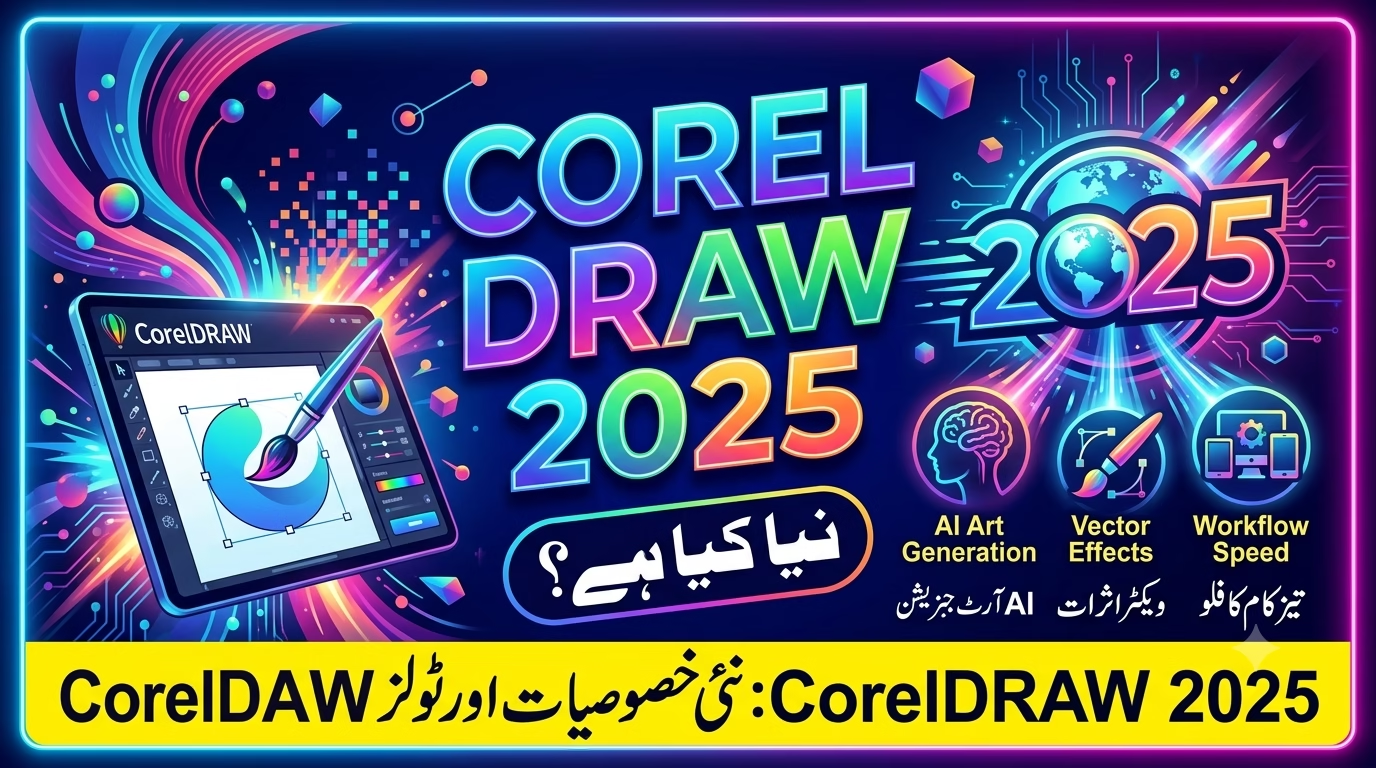

If you’re looking to learn CorelDRAW 2025 from scratch, this complete beginner guide will help you understand the software, its tools, and how to create professional designs. Whether you’re a student, graphic designer, freelancer, or business owner, CorelDRAW remains one of the best vector graphic design applications available in 2025.
What is CorelDRAW 2025?
CorelDRAW 2025 is the latest version of Corel’s professional vector graphics software. It is widely used for:
- Logo Design
- Business Cards
- Flyers
- Brochures
- Banners
- Social Media Graphics
- Sign Boards
- T-Shirt Designs
- Packaging Design
- Laser Cutting & CNC Files
Unlike Photoshop, which works with pixels, CorelDRAW uses vector graphics, allowing you to resize designs without losing quality.
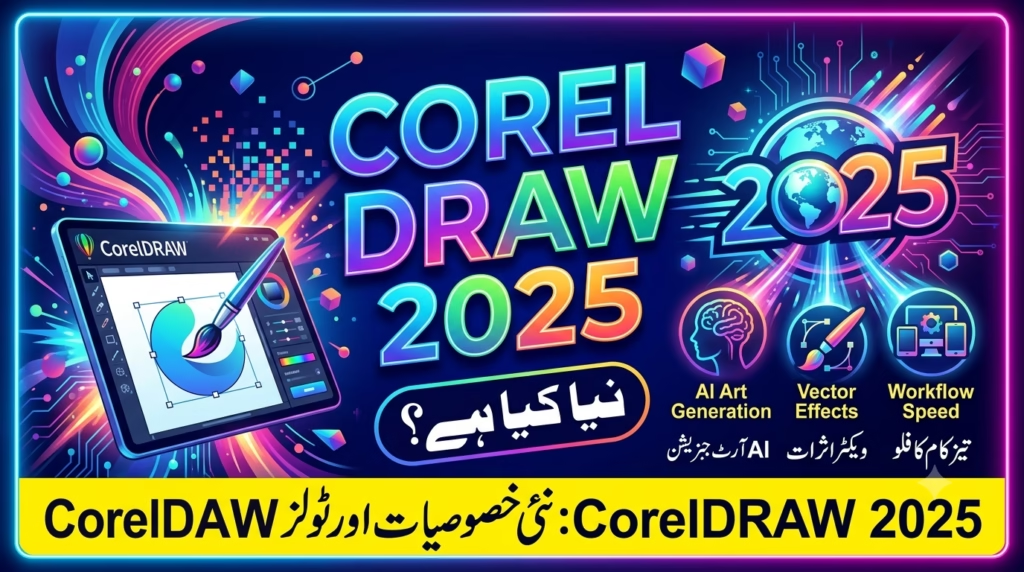
What’s New in CorelDRAW 2025?
Some of the latest improvements include:
- Faster performance
- Improved multi-page editing
- Enhanced PowerTRACE
- Better PDF import and export
- AI-powered design features
- Improved typography controls
- New templates and creative assets
- Optimized user interface
System Requirements
| Component | Minimum |
|---|---|
| Operating System | Windows 10/11 (64-bit) |
| Processor | Intel Core i5 or AMD Ryzen 5 |
| RAM | 8 GB (16 GB Recommended) |
| Storage | 6 GB Free Space |
| Graphics | DirectX 12 Compatible |
| Display | Full HD (1920×1080) |
Installing CorelDRAW 2025
- Download CorelDRAW from the official website.
- Run the installer.
- Sign in with your Corel account.
- Choose the installation location.
- Wait until installation finishes.
- Launch CorelDRAW.
Understanding the Workspace
When CorelDRAW opens, you’ll see:
Menu Bar
Contains all commands like:
- File
- Edit
- View
- Layout
- Effects
- Window
- Help
Property Bar
Changes according to the selected tool.
Toolbox
Located on the left side.
This contains almost every drawing tool.
Color Palette
Located on the right side.
Click:
- Left Click → Fill Color
- Right Click → Outline Color
Pages
Create multiple pages for brochures, books, or catalogs.
Essential Tools Every Beginner Must Learn
Pick Tool
Used for:
- Selecting objects
- Moving
- Rotating
- Scaling
- Skewing
Shortcut:
Spacebar
Shape Tool
Used for editing nodes and curves.
Shortcut:
F10
Rectangle Tool
Create:
- Boxes
- Cards
- Buttons
- Frames
Shortcut:
F6
Ellipse Tool
Draw:
- Circles
- Ovals
Shortcut:
F7
Polygon Tool
Create:
- Triangles
- Hexagons
- Stars
Freehand Tool
Draw freely using your mouse or tablet.
Bezier Tool
Perfect for professional vector drawing.
Pen Tool
Used for accurate curves and illustrations.
Text Tool
Add:
- Headings
- Paragraphs
- Artistic Text
Shortcut:
F8
Smart Fill Tool
Automatically fills enclosed shapes.
Useful for:
- Cartoon Artwork
- Vector Illustration
Transparency Tool
Creates smooth fading effects.
Interactive Fill Tool
Create:
- Linear Gradient
- Radial Gradient
- Conical Gradient
Drop Shadow Tool
Adds realistic shadows.
Contour Tool
Creates inner and outer outlines.
Blend Tool
Smoothly blends two objects.
Envelope Tool
Warp and distort objects.
Knife Tool
Cut objects into multiple parts.
Eraser Tool
Erase vector objects.
Layers Explained
Layers help organize your design.
Example:
Layer 1 → Background
Layer 2 → Logo
Layer 3 → Text
Layer 4 → Icons
Working with Text
CorelDRAW offers two text types:
Artistic Text
Best for:
- Logos
- Titles
- Headlines
Paragraph Text
Best for:
- Articles
- Brochures
- Books
Working with Images
You can:
- Import photos
- Crop images
- Remove backgrounds
- Trace bitmap images
- Convert images into vectors
PowerTRACE
One of CorelDRAW’s most popular features.
It converts:
PNG
JPG
BMP
into editable vector graphics.
Perfect for:
- Logo recreation
- CNC cutting
- Laser engraving
Color Modes
RGB
Best for:
- Websites
- Social Media
- YouTube Thumbnails
CMYK
Best for:
- Printing
- Business Cards
- Flex Printing
Exporting Your Design
CorelDRAW supports:
- PNG
- JPG
- SVG
- AI
- EPS
- TIFF
- DXF
Beginner Practice Projects
Start with these simple projects:
- Business Card
- Company Logo
- Restaurant Flyer
- YouTube Thumbnail
- Social Media Post
- Certificate
- Invitation Card
- Product Label
- Menu Card
- Roll-Up Banner
Common Beginner Mistakes
- Using low-resolution images
- Forgetting to save frequently
- Designing in RGB for print projects
- Ignoring layers
- Using too many fonts
- Overusing effects
- Not converting text to curves before sharing print files
Tips to Learn Faster
- Practice at least 30 minutes daily.
- Learn keyboard shortcuts.
- Recreate existing designs.
- Organize files using layers.
- Save projects in both CDR and PDF formats.
- Explore templates to understand professional layouts.
Frequently Asked Questions (FAQs)
Is CorelDRAW 2025 good for beginners?
Yes. Its user-friendly interface makes it one of the easiest professional design tools to learn.
Can CorelDRAW replace Photoshop?
Not completely. CorelDRAW is ideal for vector graphics, while Photoshop is better for photo editing. Many professionals use both together.
Is CorelDRAW suitable for logo design?
Absolutely. It is one of the best applications for creating scalable vector logos.
Can I create files for CNC and laser cutting?
Yes. CorelDRAW supports formats such as DXF, SVG, and EPS, making it popular for CNC, laser engraving, and sign-making industries.