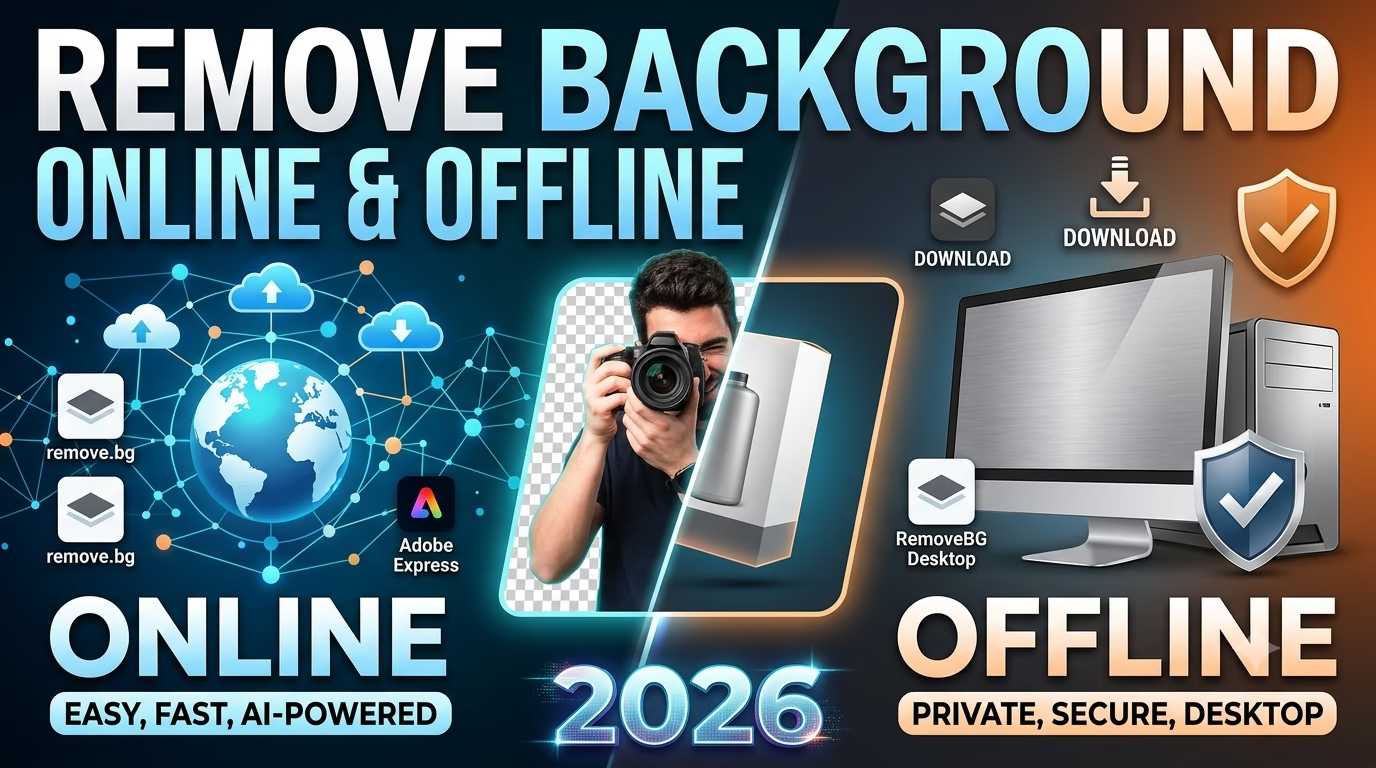

Removing a background from an image is one of the most common tasks in graphic design. Whether you’re creating product photos, YouTube thumbnails, social media posts, or marketing materials, a transparent background helps your design look clean and professional.
Thanks to AI, removing backgrounds has become easier than ever. You can use online tools for quick edits or offline software for more precise and professional results. In this guide, we’ll explore the best options for both.
Best Online Background Removal Tools
1. Remove.bg
One of the most popular AI-powered tools for removing backgrounds in just one click. It works well for portraits, products, and everyday images.
Pros:
- One-click background removal
- Fast processing
- Easy to use
Cons:
- High-resolution downloads may require credits.
2. Adobe Express
Adobe Express offers a free AI background remover with excellent edge detection. It’s perfect for creating social media graphics and marketing content.
3. Canva
Canva’s built-in Background Remover allows users to remove backgrounds and continue editing within the same project, making it ideal for beginners.
4. Clipdrop
Clipdrop includes AI tools for background removal, object cleanup, image enhancement, and relighting.
5. Pixlr
Pixlr is a free online photo editor that includes an AI-powered background remover along with basic editing features.
Best Offline Background Removal Software
Adobe Photoshop
Photoshop remains the industry standard for professional background removal. Features like Select Subject, Remove Background, and Layer Masks provide maximum control.
CorelDRAW
CorelDRAW is a great choice for logo designers and vector artwork. It also offers powerful tools for editing backgrounds and converting images into vectors.
GIMP
A free and open-source alternative to Photoshop. It supports layer masks, paths, and manual background editing.
Paint.NET
Lightweight software that’s easy to use for beginners and suitable for simple editing tasks.
Online vs Offline – Which Is Better?
| Feature | Online | Offline |
|---|---|---|
| Speed | ⭐⭐⭐⭐⭐ | ⭐⭐⭐ |
| Quality | ⭐⭐⭐⭐ | ⭐⭐⭐⭐⭐ |
| Internet Required | Yes | No |
| Best For | Quick Editing | Professional Work |
Tips for Better Results
- Use high-resolution images.
- Choose PNG when saving transparent images.
- Refine edges for hair and complex objects.
- Avoid blurry or low-quality photos.
- Add natural shadows after removing the background for a realistic look.